
The following shortcodes are available:
- ⦁ You can make page that will show list with all your documents (You can hide some documents if you want) – place next shortcode on this page:
. You can change number of columns on your page with list of your documentation. You must add for example shortcode
-
Aniro Hotel
-
0. General information
-
1. Installing
-
2. Demo content
- ...
-
-
Aniro Hotel Light
-
0. General information
-
1. Installing
-
2. Add demo content
- ...
-
-
SagaBlog Light
-
0. General information
-
1. Installing
-
2. Add demo content
- ...
-
-
Silvera
-
0. General information
-
1. Installing
-
2. Demo content
- ...
-
-
WDV About Me Widget
-
0. General information
-
1. Installing
-
2. How to use
- ...
-
-
WDV About Me Widget PRO
-
0. General information
-
1. Installing
-
2. How to use
- ...
-
-
WDV Ajax Search
-
0. General information
-
1. Installing
-
2. How to use
- ...
-
-
WDV Mailchimp Ajax
-
0. General information
-
FAQ
-
1. Installing
- ...
-
-
WDV One Page Docs
-
0. General information
-
1. Installation
-
2. How to use
- ...
-
-
WDV One Page Docs PRO
-
0. General information
-
1. Installation
-
2. How to use
- ...
-
on this page. And you will have 3 columns (there are 2 columns for default).-
Aniro Hotel
-
0. General information
-
1. Installing
-
2. Demo content
- ...
-
-
Aniro Hotel Light
-
0. General information
-
1. Installing
-
2. Add demo content
- ...
-
-
SagaBlog Light
-
0. General information
-
1. Installing
-
2. Add demo content
- ...
-
-
Silvera
-
0. General information
-
1. Installing
-
2. Demo content
- ...
-
-
WDV About Me Widget
-
0. General information
-
1. Installing
-
2. How to use
- ...
-
-
WDV About Me Widget PRO
-
0. General information
-
1. Installing
-
2. How to use
- ...
-
-
WDV Ajax Search
-
0. General information
-
1. Installing
-
2. How to use
- ...
-
-
WDV Mailchimp Ajax
-
0. General information
-
FAQ
-
1. Installing
- ...
-
-
WDV One Page Docs
-
0. General information
-
1. Installation
-
2. How to use
- ...
-
-
WDV One Page Docs PRO
-
0. General information
-
1. Installation
-
2. How to use
- ...
-
⦁ That show every document – you must make page (or post) and place special shortcode for item here:×- Aniro Hotel
- Aniro Hotel Light
-
SagaBlog Light
- 0. General information
- 1. Installing
- 2. Add demo content
- 3. Customize theme
- 4. Customize theme – About SagaBlog
- 5. Customize theme – Site identity
- 6. Customize theme – Header options
- 7. Customize theme – Main slider
- 8. Customize theme – Recommended articles
- 9. Customize theme – Theme options
- 10. Customize theme – Menus
- 11. Customize theme – Colors
- 12. Customize theme – Reset settings
- 13. Post formats
- 14. Contact page
- 15. Page without sidebar
- 16. Sources and credit
-
Silvera
- 0. General information
- 1. Installing
- 2. Demo content
- 3. Customize theme
- 4. Customize theme – About “Silvera”
- 5. Customize theme – Site Identity
- 6. Customize theme – Header options
- 7. Customize theme – Menus
- 8. Customize theme – Featured slider
- 9. Customize theme – Theme options
- 10. Customize theme – Widgets
- 11. Customize theme – Colors
- 12. Customize theme – Fonts
- 13. Customize theme – Reset settings
- 14. Contact page
- 15. Page without sidebar
- 16. Popup Image
- 17. Popup Gallery
- 18. Sources and credit
- WDV About Me Widget
- WDV About Me Widget PRO
- WDV Ajax Search
- WDV Mailchimp Ajax
- WDV One Page Docs
- WDV One Page Docs PRO
2.2. Dashboard – Shortcodes
2.2. Dashboard – Shortcodes
The following shortcodes are available:
- ⦁ You can make page that will show list with all your documents (You can hide some documents if you want) - place next shortcode on this page: [wdvdocs]. You can change number of columns on your page with list of your documentation. You must add for example shortcode [wdvdocs columns='3'] on this page. And you will have 3 columns (there are 2 columns for default).
⦁ That show every document - you must make page (or post) and place special shortcode for item here: [wdvdoc id="…"]
First table
You can find shortcodes for every of your documents in in first table in plugin dashboard - 'Shortcodes'. You can place shortcode on post or page and your visitors will see documentation for your item on this post or page.

Second table
If you want to make list of your documentation for all your items on special page - place shortcode [wdvdocs] or [wdvdocs columns='3'] on this page. That your users can use link "See details" - you must chooce (in second table) for every shortcode page or post there you placed it. Choose post or page in drop down list and press "Submit" to save it in data base. If you do not want to show any document in list - mark check box 'Hide doc'.

-
Aniro Hotel - top
-
0. General information - top
Theme demo: aniro.wdvillage.com
Thanks for purchasing Aniro Hotel – WordPress theme for hotels with mobile-friendly design. This is a best choice for your hotel.
This Aniro Hotel WP theme working together with free plugin “WP Hotel Booking” you can read more about this plugin here.
Please, read this documentation before you get started. In this documentation, you can find how you can customize the theme. If you have any questions you can contact us by e-mail.
When you purchasing Aniro Hotel theme on Themeforest.net – you can find the following files in a zip file:
- child-theme: Zip file with child theme.
- documentation.
- anirohotel: Zip file with Aniro Hotel WordPress Theme.
- licensing.
-
1. Installing - top
-
2. Demo content - top
-
3. WP Hotel Booking - top
-
4. Customize theme - top
-
5. Customize theme – About Aniro Hotel - top
-
6. Customize theme – Site identity - top
-
-
Aniro Hotel Light - top
-
SagaBlog Light - top
-
0. General information - top
-
1. Installing - top
-
2. Add demo content - top
-
3. Customize theme - top
-
4. Customize theme – About SagaBlog - top
-
5. Customize theme – Site identity - top
-
6. Customize theme – Header options - top
-
7. Customize theme – Main slider - top
-
8. Customize theme – Recommended articles - top
-
9. Customize theme – Theme options - top
-
10. Customize theme – Menus - top
-
11. Customize theme – Colors - top
-
12. Customize theme – Reset settings - top
-
13. Post formats - top
-
14. Contact page - top
-
15. Page without sidebar - top
-
16. Sources and credit - top
-
-
Silvera - top
-
0. General information - top
-
1. Installing - top
-
2. Demo content - top
-
3. Customize theme - top
-
4. Customize theme – About “Silvera” - top
-
5. Customize theme – Site Identity - top
-
6. Customize theme – Header options - top
-
7. Customize theme – Menus - top
-
8. Customize theme – Featured slider - top
-
9. Customize theme – Theme options - top
-
10. Customize theme – Widgets - top
-
11. Customize theme – Colors - top
-
12. Customize theme – Fonts - top
-
13. Customize theme – Reset settings - top
-
14. Contact page - top
-
15. Page without sidebar - top
-
16. Popup Image - top
-
17. Popup Gallery - top
-
18. Sources and credit - top
-
-
WDV About Me Widget - top
-
0. General information - top
WDV About Me Widget (WordPress plugin) – with this plugin you can add ‘WDV About Me Widget’ widget to your theme.
You can add your data or your firm data. You can add image, description, link, contact information, social links.
You can use widget ‘WDV About Me Widget’ in different ways. For example:
a) You can place this widget ‘WDV About Me Widget’ on left or right sidebar and add image, description, contact information and social links.
b) You can place this widget ‘WDV About Me Widget’ 2 times in footer. One time for adding image and description and second time for adding contact information and social links.If you have any questions, please contact us on email.
-
1. Installing - top
You can upload the 'WDV About Me Widget' plugin files to the '/wp-content/plugins/wdv-about-me-widget' directory, or install the plugin through the WordPress plugins screen directly.
In your WordPress administration, go to the Plugins page.
Activate the 'WDV About Me Widget' plugin through the 'Plugins' screen in WordPress.
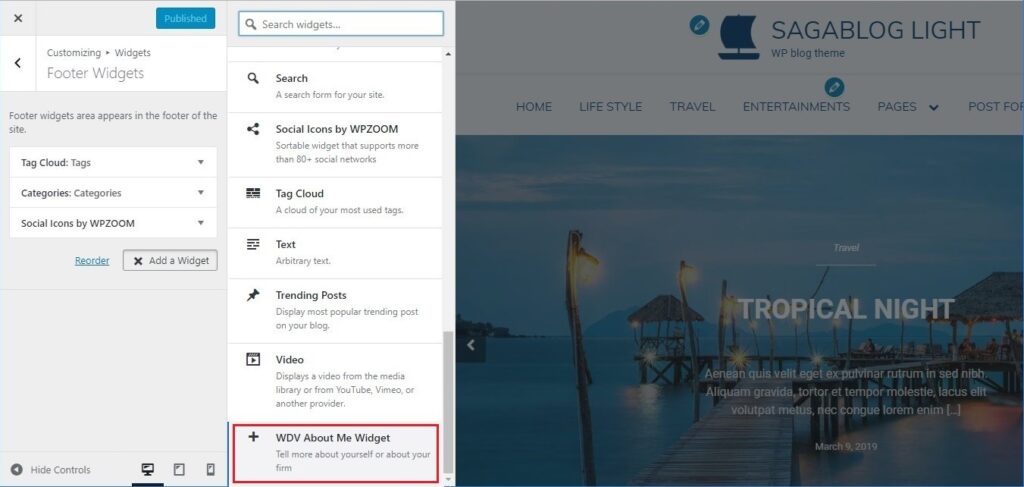
Now you can add widget ‘WDV About Me Widget’to your WP theme widget area.
You can go to WP Customizer find section “Widgets” there, choose sidebar and you can place widget “WDV About Me Widget” here.
-
2. How to use - top
You can add you data or your firm data. You can add image, description, link, contact information, social links.
You can do next:
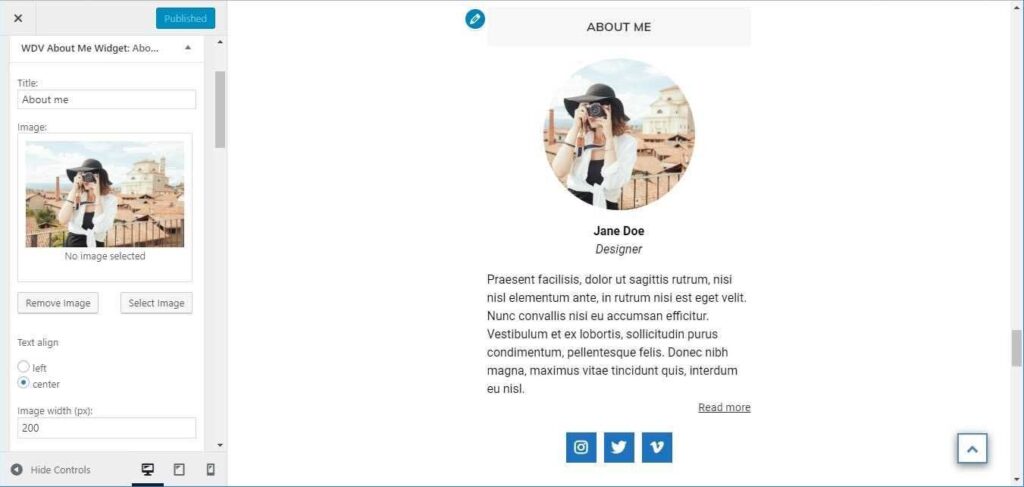
– You can add image (Image can be cirkle, rectangle, rounded rectangle. You can change size of image.)
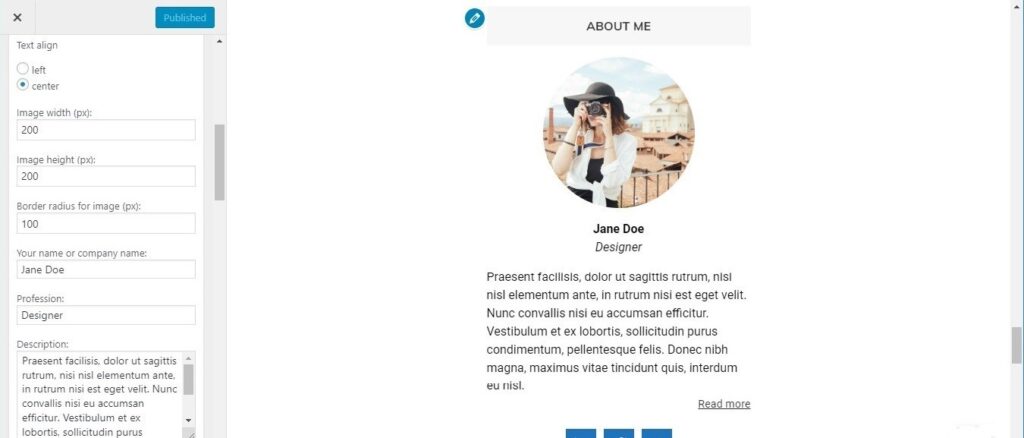
– You can add your name and your profession or your firm name.
– You can add description and link to page with more informations about you or your firm.
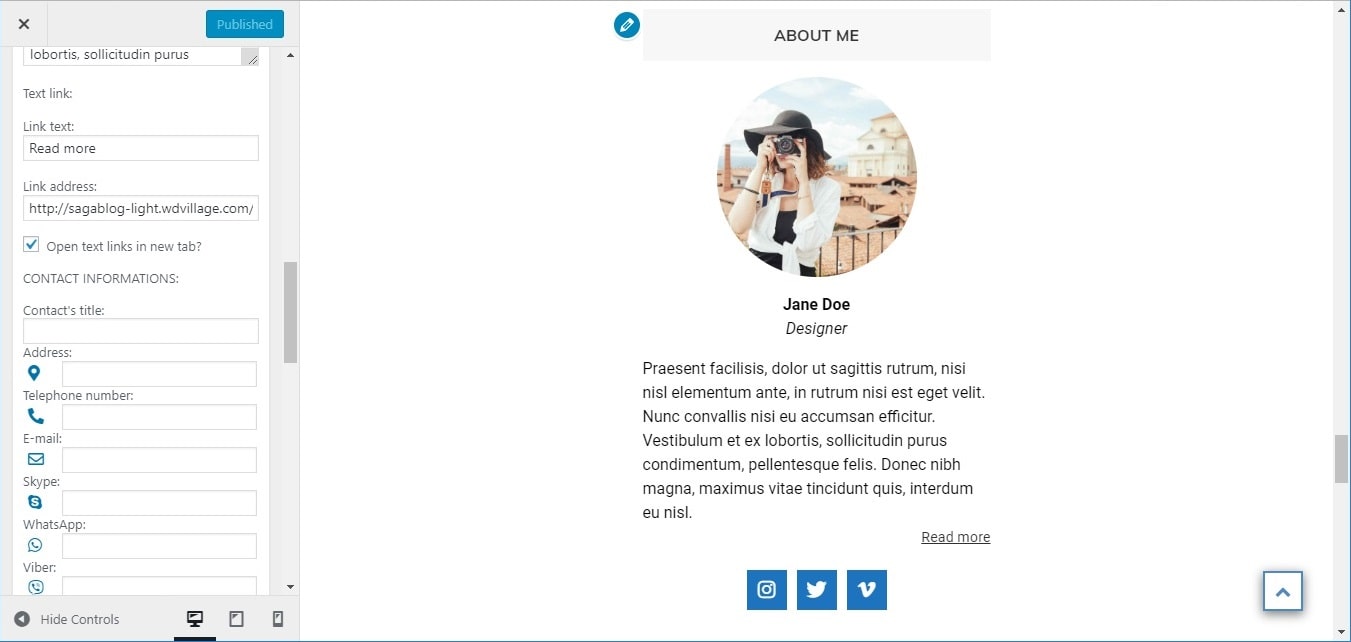
– You can add contact information (You can add address, telephone number, e-mail, Skype nickname, WhatsApp and Viber numbers. You can change contact icons color).
– You can add social icons (You can choose icon style: icon can be cirkle, rectangle, rounded rectangle. You can change size of icon, icon color, icon background color).
Now are supported the following social networks:– Behance
– Blogger
– Codepen
– Deviantart
– Dribbble
– Facebook
– Flickr
– Foursquare
– Github
– Gitlab
– Instagram– Linkedin
– Medium
– Meetup
– Odnoklassniki
– Periscope
– Pinterest
– Pocket
– Qq
– Reddit
– Stumbleupon
– Slack– Snapchat
– Soundcloud
– Spotify
– Stackoverflow
– Telegram
– Tripadvisor
– Tumblr
– Twitch
– Twitter
– Viadeo
– Vimeo– Vine
– Vk
– Weibo
– Wechat
– WordPress
– Xing
– Yelp
– Youtube
– YoastYou can add an image and choose its size and border radius:
You can add text (name, firm name, description) and choose text align:
You can add link and you can add contact information:
You can choose font size for social icons, border radius, colors:
-
3. Examples - top
It is examples - here your can find how widget will look like on site:
- Here you can find "WDV About Me Widget" in right sidebar (with name "ABOUT ME") and in footer (with name "CONTACTS"): sagablog-light.wdvillage.com
- Here you can find "WDV About Me Widget" in footer: silvera-demo.wdvillage.com
- Here you can find two "WDV About Me Widget" in footer - one widget have name "ANIRO HOTEL" and second widget have name "CONTACT INFO" (but they both are "WDV About Me Widget"): anirohotel-light.wdvillage.com
-
-
WDV About Me Widget PRO - top
-
0. General information - top
WDV About Me Widget PRO (WordPress plugin) – it is PRO version of plugin WDV About Me Widget. With this plugin you can add ‘WDV About Me Widget PRO’ widget to your theme. The WDV About Me Widget PRO plugin is especially mobile-friendly. Visitors to your site by clicking on the phone numbers will be able to immediately call you or send a message.
You can add your data or your firm data. You can add image, description, link, contact information, social links.
Here is a comparison of free (WDV About Me Widget) and pro versions (WDV About Me Widget PRO):
Options WDV About Me Widget WDV About Me Widget PRO add a picture under the widget title + + change image settings ( width, height, border radius) + + text align + + add name, profession, description + + add link (and link's align) + + add contacts information + + change contact icons color + + mobile-friendly - + add background color for widget - + add background image for widget - + add social icons + + chenge social icon style + + If you have any questions, please contact us on email.
-
1. Installing - top
After buing plugin 'WDV About Me Widget PRO' you will get ZIP file "wp-plugin-wdv-about-me-widget-pro.zip". You must unzip it and you will find ZIP file "wdv-about-me-widget-pro.zip". It is zip with plugin 'WDV About Me Widget PRO'. You must install this zip. You can install plugin in 2 ways.
Downloading the zip archive with the plugin from the admin panel (admin panel):
- you need to go to the admin panel section: Plugins -> Add new and click on the button: Upload plugin
- next, click Choose file, select our ZIP archive from your computer. Then click Install now
- after the plugin is loaded, click on the link: Activate plugin.
Uploading the plugin to the server via FTP:
- unpack zip file (it will contain the plugin folder)
- upload the plugin folder from the downloaded zip archive to your WordPress plugins directory: /wp-content/plugins/
- go to the admin panel in the Plugins section and activate the plugin
-
2. How to use - top
You can add to widget 'WDV About Me Widget PRO' your data or your firm data. You can add image, description, link, contact information, social links. You can change background color for this widget - this will help draw more attention to your data and contact information. The same is true when adding a background image to the widget. The WDV About Me Widget PRO plugin is especially mobile-friendly. Visitors to your site by clicking on the phone numbers will be able to immediately call you or send a message.
You can do next:
- You can add image (Image can be cirkle, rectangle, rounded rectangle. You can change size of image.)
- You can add your name and your profession or your firm name.
- You can add description and link to page with more informations about you or your firm.
- You can add contact information (You can add address, telephone number, e-mail, Skype nickname, WhatsApp, Viber and Telegram numbers. You can change contact icons color).
- You can change background color for widget or add background image for widget.
- You can add social icons (You can choose icon style: icon can be cirkle, rectangle, rounded rectangle. You can change size of icon, icon color, icon background color).
Now are supported the following social networks:
– Behance
– Blogger
– Codepen
– Deviantart
– Dribbble
– Facebook
– Flickr
– Foursquare
– Github
– Gitlab
– Instagram– Linkedin
– Medium
– Meetup
– Odnoklassniki
– Periscope
– Pinterest
– Pocket
– Qq
– Reddit
– Stumbleupon
– Slack– Snapchat
– Soundcloud
– Spotify
– Stackoverflow
– Telegram
– Tripadvisor
– Tumblr
– Twitch
– Twitter
– Viadeo
– Vimeo– Vine
– Vk
– Weibo
– Wechat
– WordPress
– Xing
– Yelp
– Youtube
– YoastYou can add an image and change image size and border radius:
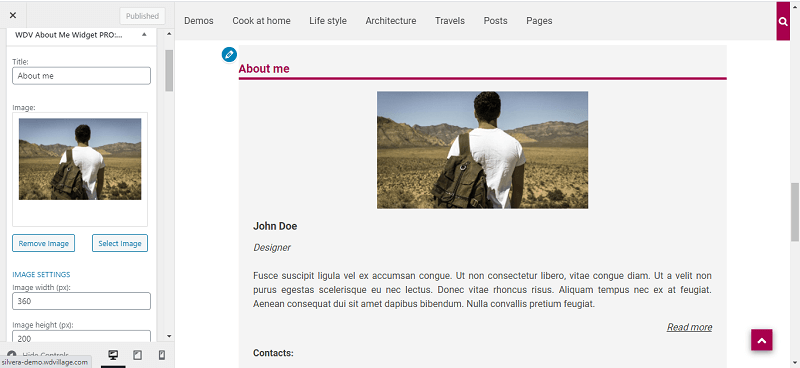
You can add your name or your firm name, description and choose text align:
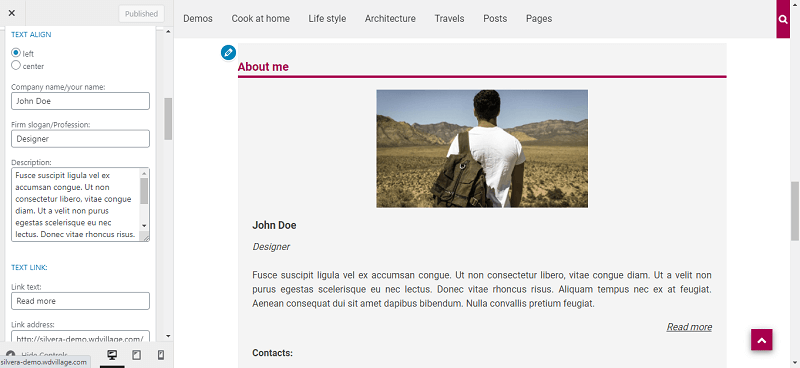
You can add background image for widget (or change background color). You can change text color (if your background, for example dark):
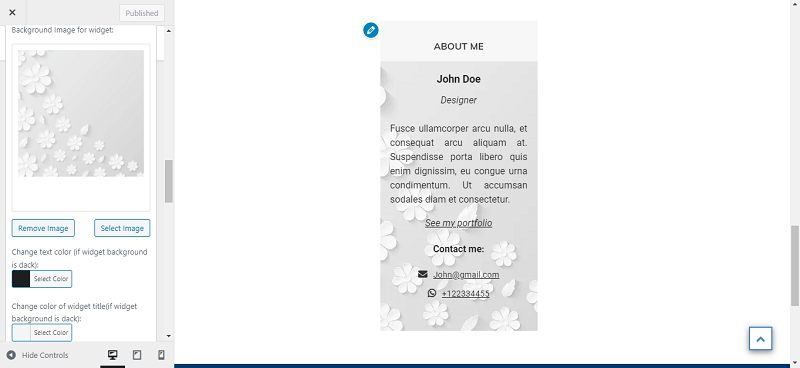
You can write you contacts information and you can change color of contact icons:
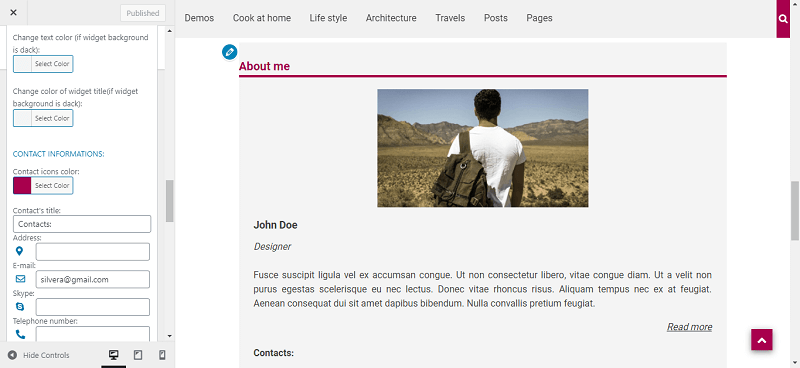
You can add sicial icons and change it color, size, background color:
-
3. Examples - top
It is examples - here your can find how widget will look like on site:
- Here you can find "WDV About Me Widget PRO" in right sidebar (with name "ABOUT ME"): sagablog-light.wdvillage.com/contacts-2
- Here you can find "WDV About Me Widget PRO" in right sidebar (with name "About me") and in footer (with name "Contacts"): silvera-demo1.wdvillage.com/contacts-2/
- Here you can find two "WDV About Me Widget PRO" in footer - one widget have name "ANIRO HOTEL" and second widget have name "CONTACT INFO" (but they both are "WDV About Me Widget PRO"): aniro.wdvillage.com
-
-
WDV Ajax Search - top
-
0. General information - top
WDV Ajax Search (WordPress plugin) – with this plugin you can create different search forms for different post types your site and put their shortcode on the corresponding page.
-
1. Installing - top
- Upload the plugin files to the '/wp-content/plugins/wdv-ajax-search' directory, or install the plugin through the WordPress plugins screen directly.
- In your WordPress administration, go to the Plugins page.
- Activate the WDV Ajax Search plugin through the ‘Plugins’ screen in WordPress.
-
2. How to use - top
-
3. Real examples - top
Page aniro.wdvillage.com/services contains a service search form. Here the search is carried out by headings (you can use for example "book" as a search word): Services (When the search is carried out by headings, then when opening the found pages, the search word is not marked there.)
Here you can see search form on blog page: Blog (you can use for example "room" as a search word).
Page aniro.wdvillage.com/rooms contains a search form for the description of rooms. Here, the search is carried out by the titles and content of the page (you can use for example "bed" as a search word): Rooms (When the search is carried out by the titles and content of the page, then when you open the found pages, the search word there is highlighted in color).
-
-
WDV Mailchimp Ajax - top
-
0. General information - top
WDV MailChimp Ajax (WordPress plugin) – with this plugin you can add ‘WDV MailChimp Ajax’ widget with subscribe form by MailChimp that using ajax.
You can change the design of the widget to attract attention to the subscription form. Visitors to your site who wished to subscribe to your newsletters will get the answer – you’re subscribed to our newsletter. Single opt-in – no confirmation email sending to subscribers.
If you have any questions, please contact us on email.
-
FAQ - top
-
1. Installing - top
- Upload the plugin files to the '/wp-content/plugins/wdv-mailchimp-ajax' directory, or install the plugin through the WordPress plugins screen directly.
- In your WordPress administration, go to the Plugins page.
- Activate the WDV MailChimp Ajax plugin through the ‘Plugins’ screen in WordPress. Now you can find widget “WDV: Subscribe mailchimp” in list with all widgets.
- You can go to WP Customizer find section “Widgets” there, choose sidebar and you can place widget “WDV: Subscribe mailchimp” here.
- Or you can go to “Appearance > Widgets” and place the widget “WDV: Subscribe mailchimp” in your sidebar on this page.
-
2. How to use - top
FEATURES:
– Easy to use
– The design of the widget with attract attention to the subscription form.
– Use a different API key and different mailing list per different widgets.
– You can add as many widgets as you need.
– Single opt-in – no confirmation email send to subscribers.
– You can add image in this widget:
—- You can place image how background image for this widget.
—- Or you can add single image in this widget.
– You must add data from your Mailchimp account (Api key and Audience ID).
– You can change color of widget’s title, description, subscribe button background color, button text color. You can change background color for widget “WDV: Subscribe mailchimp”. You can create padding around the widget.
– Your subscribers will get the answer immediately – you’re subscribed to our newsletter.
– Latest Mailchimp API V3 -
3. Real example - top
On this page you can find widget "WDV Mailchimp Ajax" in footer and you can wrire any e-mail and see answer from Mailchimp - you’re subscribed to our newsletter: anirohotel-light.wdvillage.com.
-
-
WDV One Page Docs - top
-
0. General information - top
WDV One Page Docs - WordPress plugin for creating documents and faq. The "WDV One Page Docs" plugin is easy to use and works with any theme. This plugin is very convenient for creating not too much documentation for your product, when it is convenient to place the entire description on one page.
With this plugin you can make a one page document for every your items. You can show list of your documents for all your items on special page.
Elements are sorted in ascending order (ASC). Therefore, it is advisable to add the numbering of documents and it will be sorted.
-
1. Installation - top
You can upload the 'WDV One Page Docs ' plugin files to the '/wp-content/plugins/wdv-one-page-docs' directory and activate plugin.
Or install the plugin through the WordPress plugins screen directly:
- In your WordPress administration, go to the Plugins page, find plugin 'WDV One Page Docs ' and press 'Install' and activate plugin.
- Now you can make documents and add them to your site using shortcodes.
-
2. How to use - top
-
3. Real example - top
This "WDV One Page Docs (Doc)" page is created using the "WDV One Page Docs" plugin.
-
-
WDV One Page Docs PRO - top
-
0. General information - top
WDV One Page Docs PRO plugin will help you create documents and faq for your products. The plugin is easy to use and very handy for creating small documentation for your product when it's convenient to put all the description on one page.
With this plugin, you can create a single page document for each of your products. You can show a list of your documents for all your items on a dedicated page.
-
1. Installation - top
You can upload the 'WDV One Page Docs PRO' plugin files to the '/wp-content/plugins/wdv-one-page-docs' directory and activate plugin.
Or install the plugin through the WordPress plugins screen directly:
In your WordPress administration, go to the Plugins page, find plugin 'WDV One Page Docs PRO' and press 'Install' and activate plugin.
Now you can make documents. -
2. How to use - top
-
3. How does it look on front end - top
This plugin creates two types of archive pages and three page templates for displaying the document. There is also a document search form on the archive pages.
-
4. Real example - top
Here you can see live example:
- Page with documents archive (if you create categories for documents): wdvillage.com/wdvonepagedocs
- Page with documents for one of category: wdvillage.com/wdvonepagedocs_category/plugin
- Document: wdvillage.com/wdvonepagedocs/wdv-one-page-docs-pro
-
-
First table
You can find shortcodes for every of your documents in in first table in plugin dashboard – ‘Shortcodes’. You can place shortcode on post or page and your visitors will see documentation for your item on this post or page.
Second table
If you want to make list of your documentation for all your items on special page – place shortcode
-
Aniro Hotel
-
0. General information
-
1. Installing
-
2. Demo content
- ...
-
-
Aniro Hotel Light
-
0. General information
-
1. Installing
-
2. Add demo content
- ...
-
-
SagaBlog Light
-
0. General information
-
1. Installing
-
2. Add demo content
- ...
-
-
Silvera
-
0. General information
-
1. Installing
-
2. Demo content
- ...
-
-
WDV About Me Widget
-
0. General information
-
1. Installing
-
2. How to use
- ...
-
-
WDV About Me Widget PRO
-
0. General information
-
1. Installing
-
2. How to use
- ...
-
-
WDV Ajax Search
-
0. General information
-
1. Installing
-
2. How to use
- ...
-
-
WDV Mailchimp Ajax
-
0. General information
-
FAQ
-
1. Installing
- ...
-
-
WDV One Page Docs
-
0. General information
-
1. Installation
-
2. How to use
- ...
-
-
WDV One Page Docs PRO
-
0. General information
-
1. Installation
-
2. How to use
- ...
-
-
Aniro Hotel
-
0. General information
-
1. Installing
-
2. Demo content
- ...
-
-
Aniro Hotel Light
-
0. General information
-
1. Installing
-
2. Add demo content
- ...
-
-
SagaBlog Light
-
0. General information
-
1. Installing
-
2. Add demo content
- ...
-
-
Silvera
-
0. General information
-
1. Installing
-
2. Demo content
- ...
-
-
WDV About Me Widget
-
0. General information
-
1. Installing
-
2. How to use
- ...
-
-
WDV About Me Widget PRO
-
0. General information
-
1. Installing
-
2. How to use
- ...
-
-
WDV Ajax Search
-
0. General information
-
1. Installing
-
2. How to use
- ...
-
-
WDV Mailchimp Ajax
-
0. General information
-
FAQ
-
1. Installing
- ...
-
-
WDV One Page Docs
-
0. General information
-
1. Installation
-
2. How to use
- ...
-
-
WDV One Page Docs PRO
-
0. General information
-
1. Installation
-
2. How to use
- ...
-