
On the “WDV One Page Docs PRO – Documents” page, using the “Create document” button, you can create a one-page document for your products. Further inside this document it is possible to create additional sections and articles.
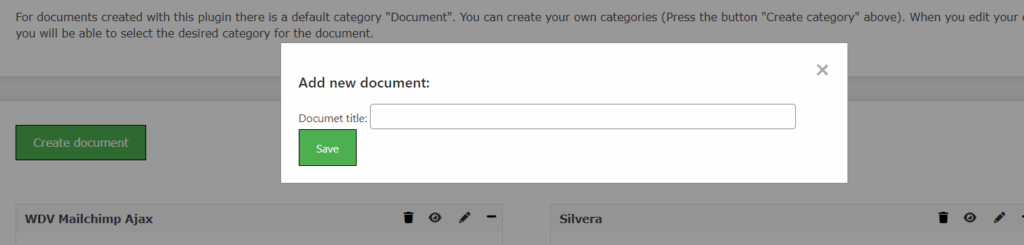
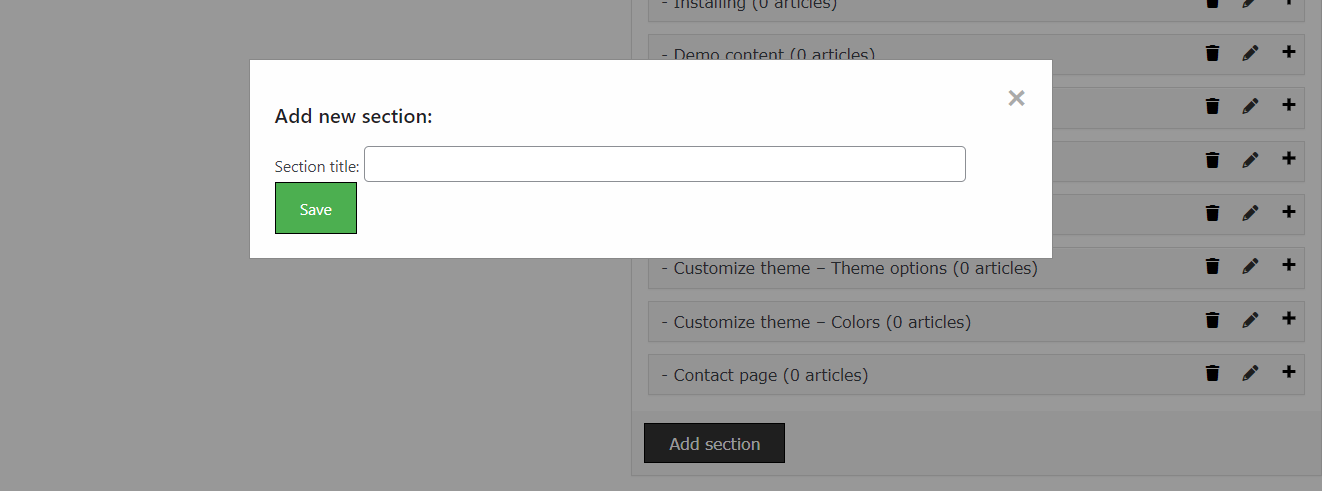
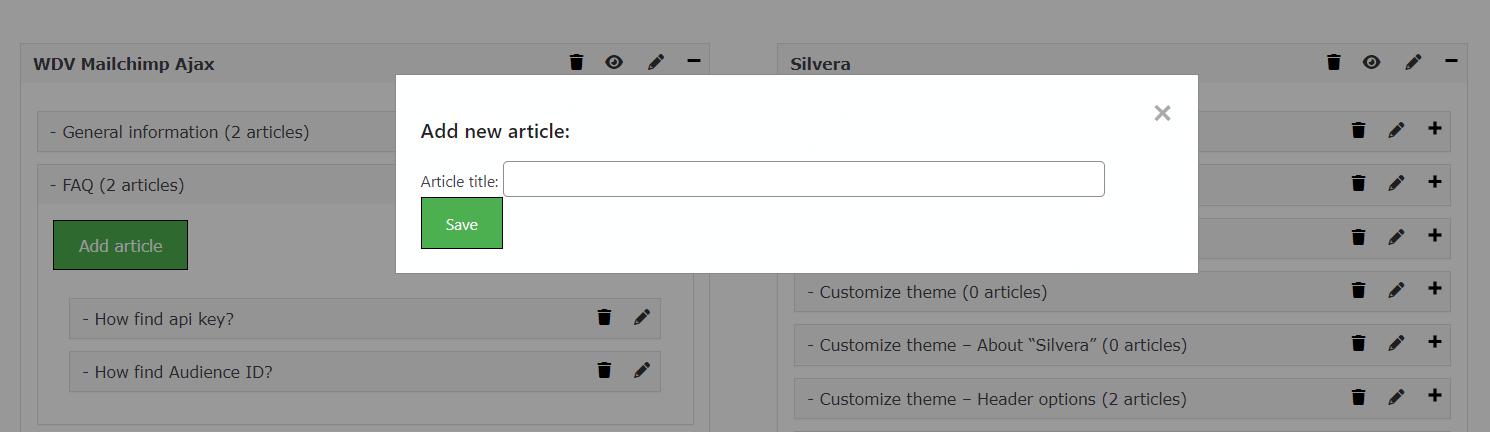
You can edit, delete and create documents and you can also view target documents.
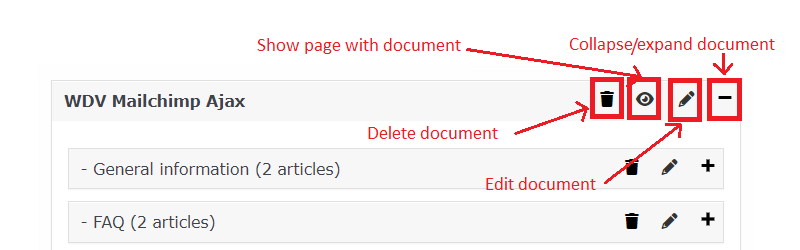
You can edit, delete and create sections and articles.
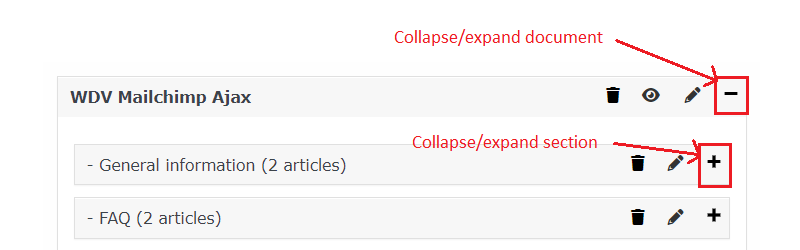
Using the “+”/”-” buttons you can collapse/expand the entire document or sections of the document.
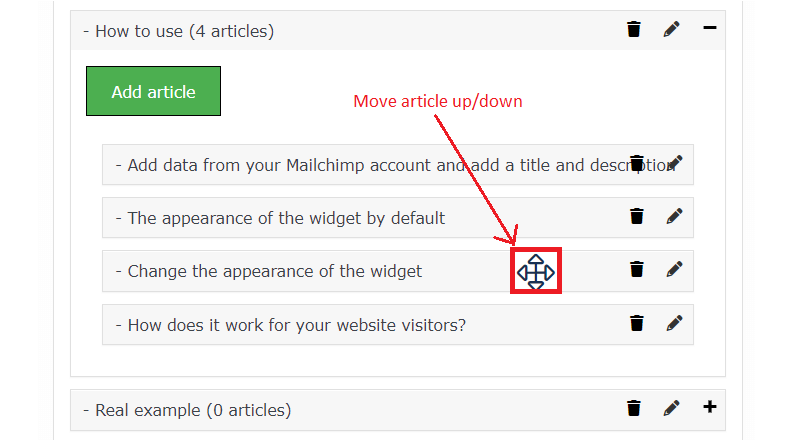
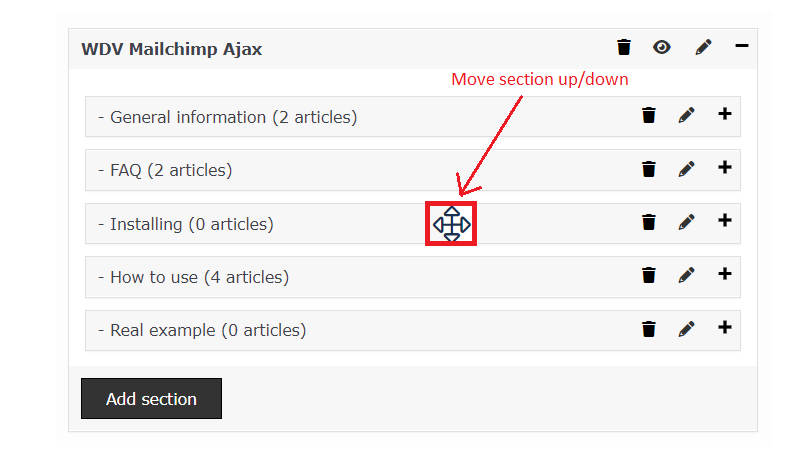
You can move up and down articles or sections.
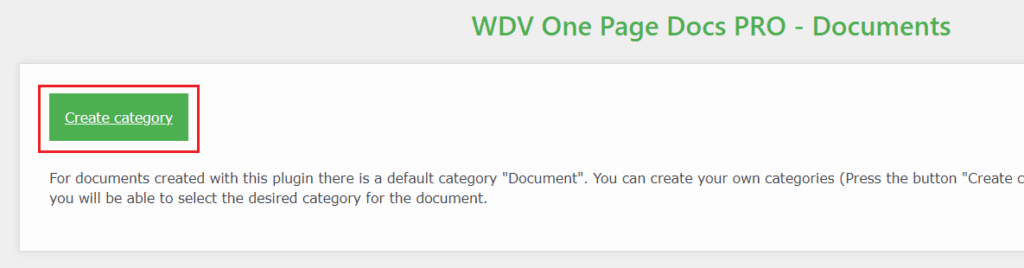
On the “WDV One Page Docs PRO – Documents” page, using the “Create category” button, you can create your own categories for your documents.
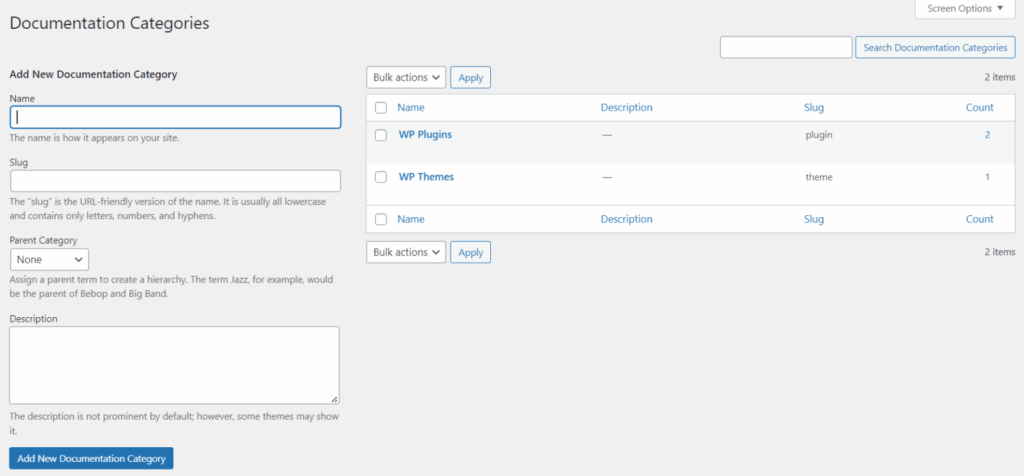
- If you do not create categories for documents (you will have one archive page for your documents):
The page on which the list of documents is displayed will be creating automatically. Link to this archive will look like: http://yoursite.com/wdvonepagedocs/ . ATTENTION! If you see a 404 page when you click on this link, go to the admin part “Settings”-> “Permalinks” and press button “Save Changes”.
- If you create categories for documents (you will have two archive pages for your documents):
To display the created documents, 2 pages of the archive are used. The page on which the list of documents is displayed will be creating automatically. Link to this archive will look like: http://yoursite.com/wdvonepagedocs/ . ATTENTION! If you see a 404 page when you click on this link, go to the admin part “Settings”-> “Permalinks” and press button “Save Changes”. Here you will see list of your documentation categories and if you press name of category – will be open new page with list of documents that is in this category. Link to category pages will be http://yoursite.com/wdvonepagedocs_category/category_name/
If you haven’t created categories yet, or just created categories and haven’t tagged documents in those categories yet, you can find your documents at http://yoursite.com/wdvonepagedocs/
In order for the document you created to belong to a certain category, you need to mark the category to which it belongs when editing the document.
ATTENTION! Perhaps when you first open a document for editing you will not see a section with a choice of document category – then you need to wait until this section appears on the page.
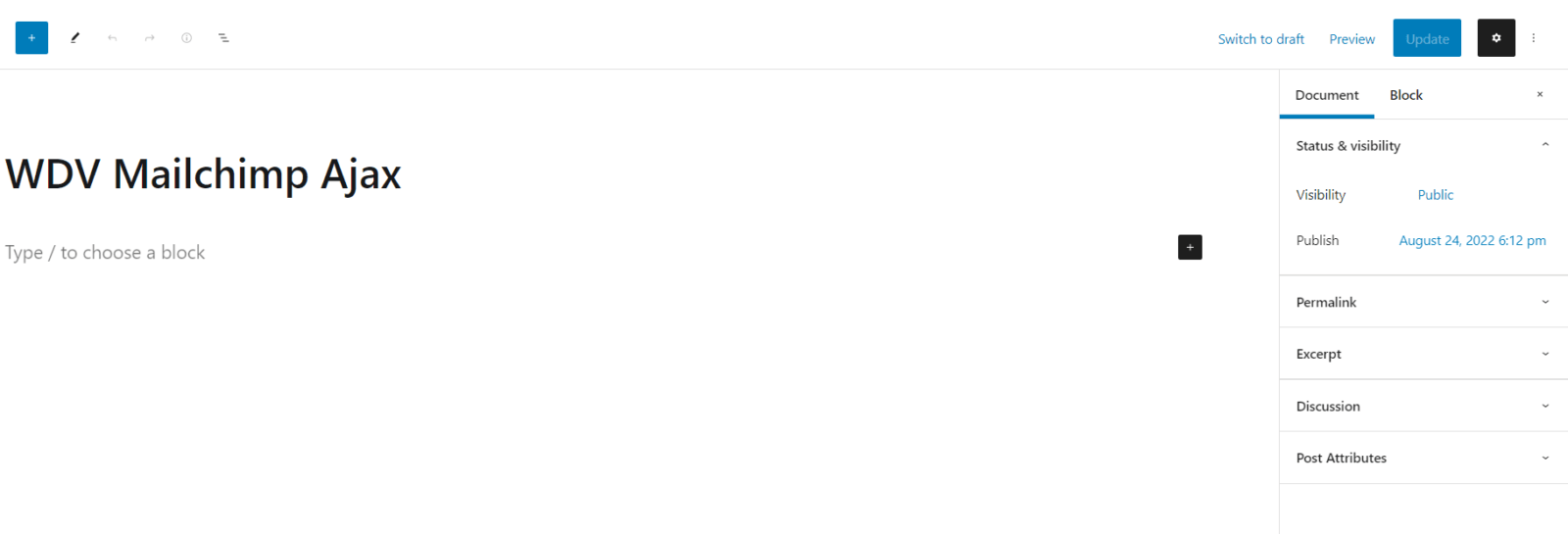
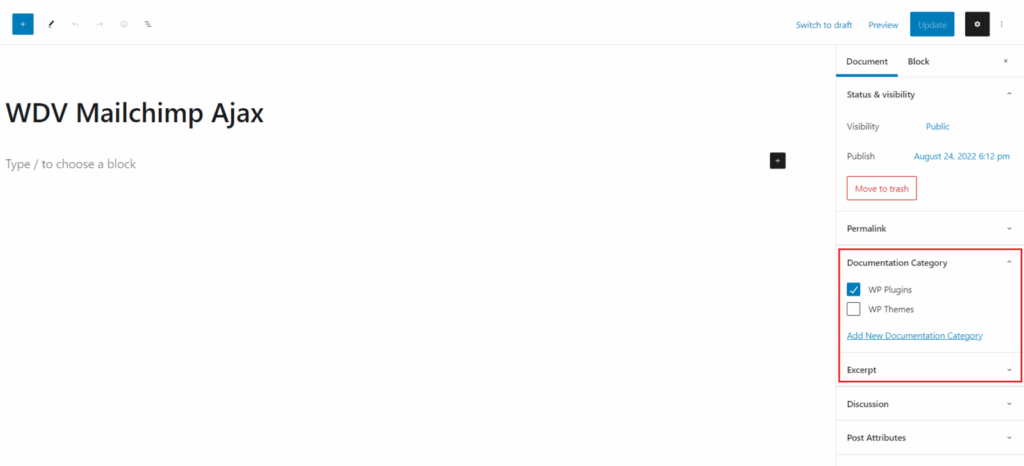
ATTENTION! It is enough to mark a category when editing a document. There is no need to mark a category for sections and articles included in the document.