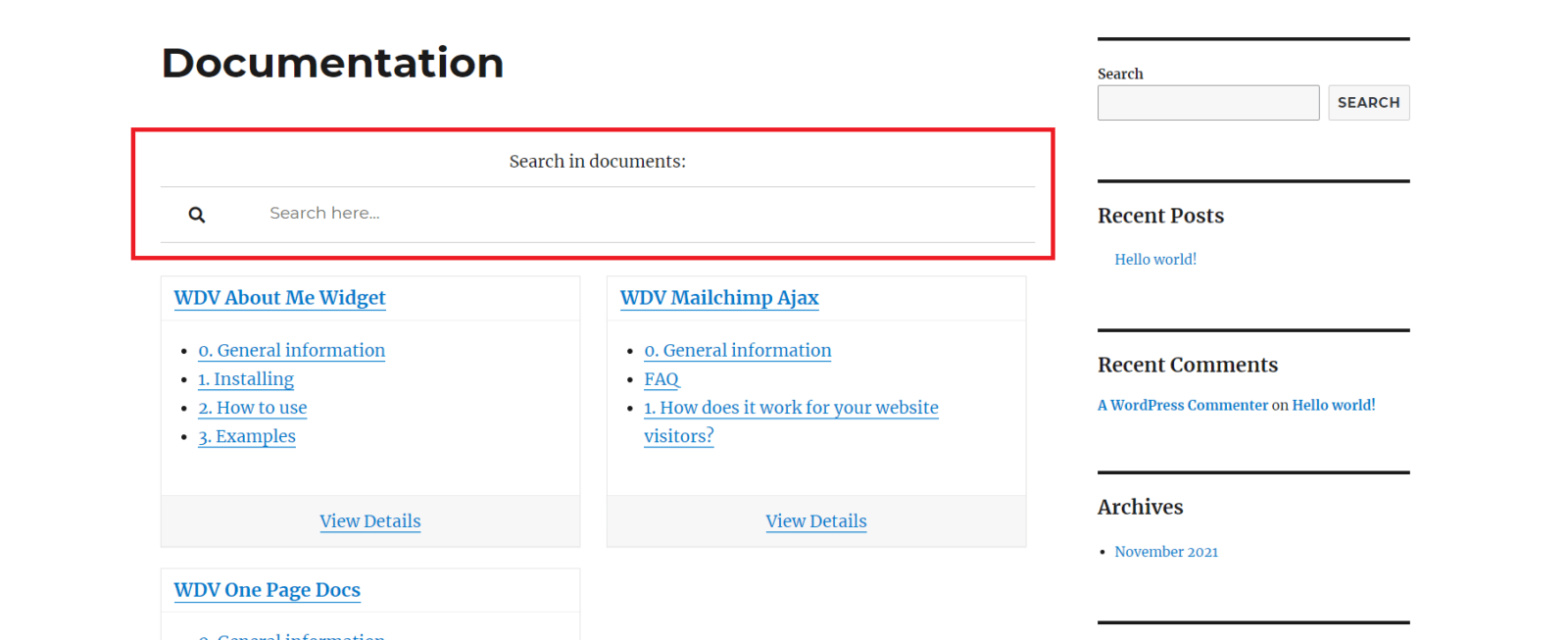
Adding a shortcode to a page.
You can add the shortcode directly to the page where you want to see the search form. For example, you installed the documentation plugin for your products. Perhaps it does not have a search form and you can add a shortcode to search for documents to the page that displays the list of documents.
Adding a shortcode to a page:

That may look like a search form on the site page:
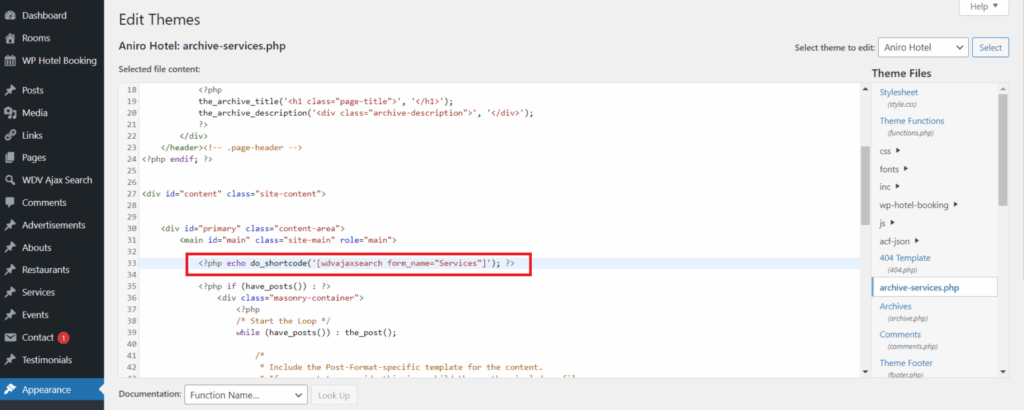
Adding a shortcode to an archive.
Perhaps you want to place the shortcode on the archive page. If your theme has a special template for your custom post type – this is how you can add the shortcode in this case:
If your theme has no a special template for your custom post type – this is how you can add the shortcode in this case:
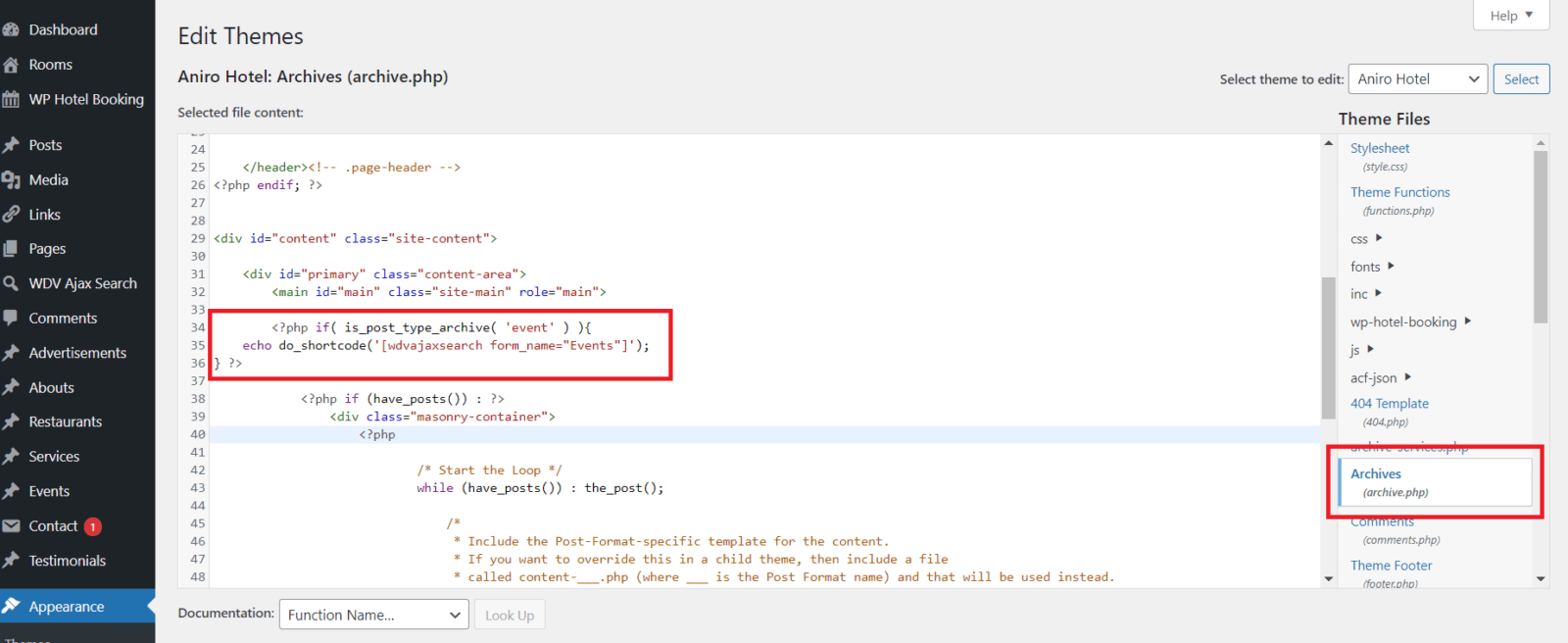
Code:
<?php if (is_post_type_archive('event')) {
	echo do_shortcode('[wdvajaxsearch form_name="Events"]');
}
 ?>
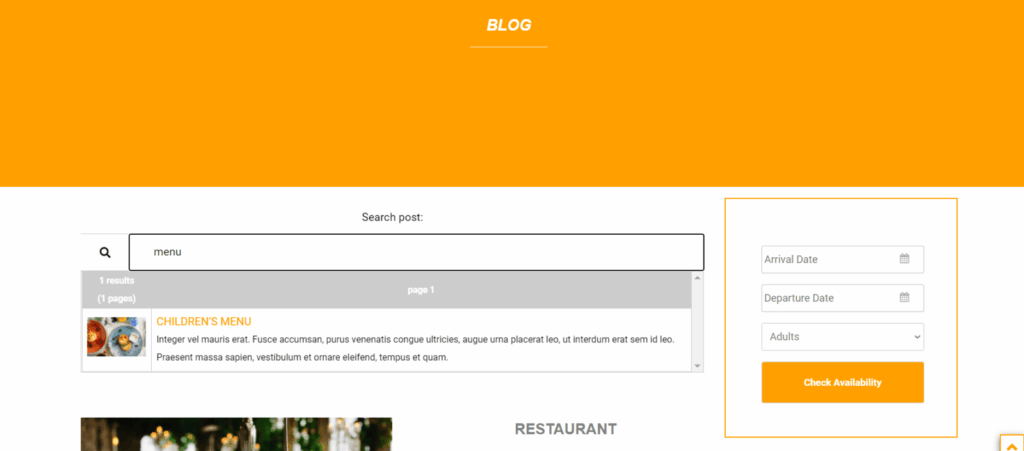
When a site visitor enters search text into the form, search results appear below the form:
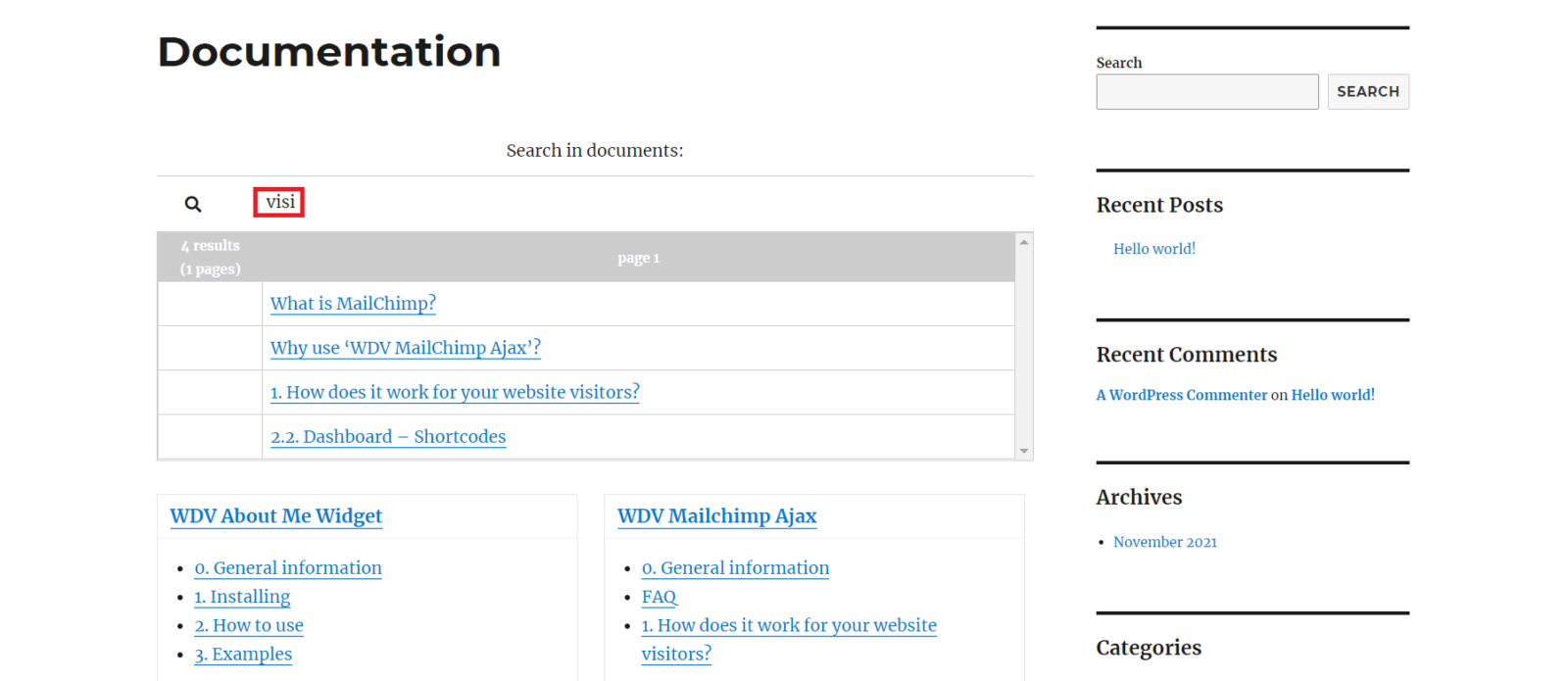
If during the creation of the form on the tab “General -> Search by” the item “Title” was selected and the visitor can simply open the found pages.
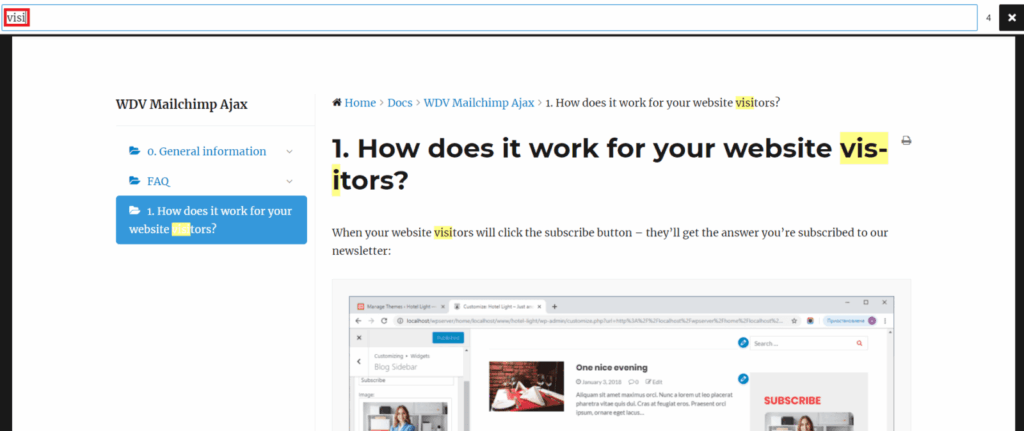
If during the creation of the form on the “General -> Search by” tab the item “Title & Content” was selected and the visitor opens any of the found pages – on this page the found search text will be highlighted in color:
Adding a shortcode to the blog page.
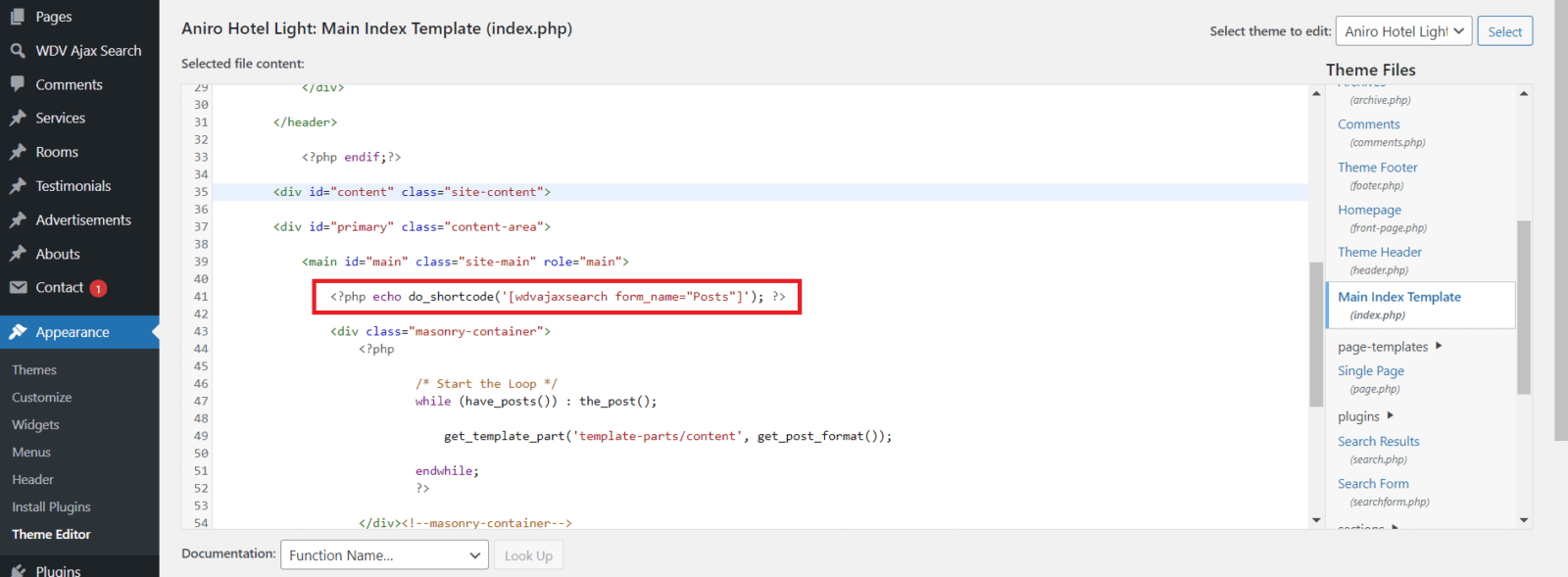
If your want to place the search form on blog page for searching in posts you must add the shortcode usually in index.php:
This is how the search form will look on the blog page: