On the “WDV One Page Docs PRO – Settings” page you can change plugin settings.
ATTENTION! You need to go to this section and regardless of whether you changed any parameters or not – and click the “Save” button.
First that you see on page “Settings” – it is checkbox “Show sidebar on documentation page and documentation”. This plugin make archive pages and pages for documentation and these pages have no sidebar. When using some themes, the sidebar still appears and can be removed using this checkbox.

In chapter “Archive pages”:
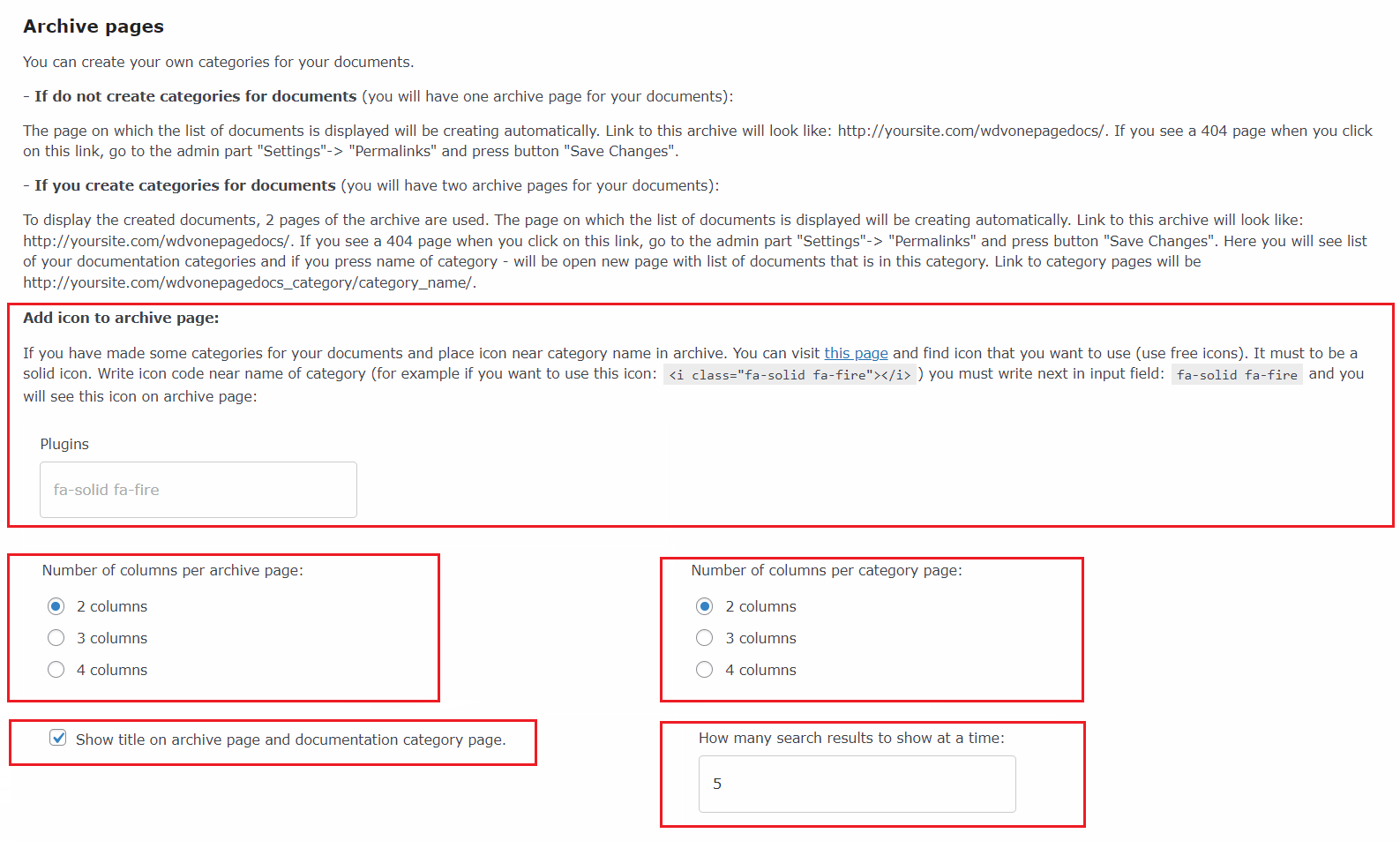
Add icon to archive page – If you created categories for documetaton – in settings you can see section “Add icon to archive page”. If you have made some categories for your documents – you can place icon near category name in archive (you can see sample in section 3.1 ). You can visit fontawesome page (https://fontawesome.com/search?o=r&m=free) and find icon that you want to use (use free icons). It must to be a solid icon. Write icon code near name of category (for example if you want to use this icon: ) you must write next in input field: fa-solid fa-fire and you will see this icon on archive page.
Number of columns per archive page – Here you can choose number of columns per archive page.
Number of columns per category page – Here you can choose number of columns per category page.
Show title on archive page and documentation category page – When using some themes, the title of the archive page is displayed in the header and, using this checkbox, you can hide one of the page titles.
How many search results to show at a time – Here you can write how many search results to show in search form at a time.
In chapter “Single document page”:
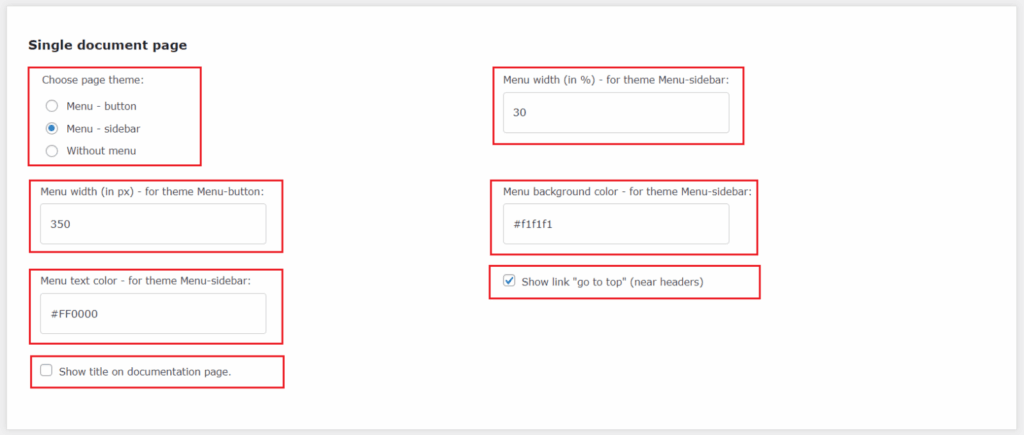
Choose page theme – You can choose one of three themes for the documentation page. In section 3.2 (Documentation pages) you can see examples of what document pages look like.
Menu width (in px) – for theme Menu-button – Here you can specify the width for the side menu that opens when the button is clicked (for theme “Menu – button”).
Menu width (in %) – for theme Menu-sidebar – Here you can specify the width for the sidebar (for theme “Menu – sidebar”).
Menu background color – for theme Menu-sidebar – Here you can change background color for the sidebar (for theme “Menu – sidebar”).
Menu text color – for theme Menu-sidebar – Here you can change text color for the sidebar (for theme “Menu – sidebar”).
Show title on documentation page – When using some themes, the title of page is displayed in the header and, using this checkbox, you can hide one of the page titles.
Show link “go to top” (near headers) – Here you can show/hide link “go to top” (it is located near the heading).